This guide explains how to create a WorkBench Data Set, map its columns to Specify fields, validate the data, review the expected results, and upload records into a collection. It also covers grid editing, matching, mapping reuse, and locality tools.
A Data Set holds your rows and columns in the WorkBench. An Upload Plan (or mapping) tells Specify which fields those columns represent and how to match existing records. Importing a spreadsheet creates a Data Set; selecting Upload later applies it to collection records. Import Attachments is different: the selected files are uploaded when the attachment Data Set is created, then linked to collection records during the later WorkBench upload.
[!tip]
WorkBench is primarily for bringing data into Specify. To change many existing records, use Batch Edit.
Get started by clicking WorkBench  in the navigation bar.
The WorkBench offers the following features:
-
Import data from CSV, TSV, PSV, TXT, XLS, and XLSX files
-
Create, view, and edit data in a grid view
-
Visualize georeferenced object information in GEOLocate and GeoMap
-
Convert geocoordinates into different formats
-
Export a Data Set and separately export or copy its mapping for reuse
When clicking on the WorkBench in the navigation menu, you are offered four options:
Cancel Import Attachments Import File Create New
You can import attachments, import existing data in compatible formats, create a new mapping and base table and manually enter data, or close the window.
To learn about importing attachments in the WorkBench you can read our guide here:
Useful Links

 Webinar: WorkBench in Specify 7
[!note]
Dates uploaded using the WorkBench will need to conform to the date format specified in the Remote Preferences file.
Learn more here: Configure Database Date Format
Adding a Data Set
Import file

You can import data from CSV, TSV, PSV, TXT, XLS, and XLSX files.
You can get one of these filetypes from your system’s file browser or drag it into Specify.
[!note]
For a delimited text file, check its header setting, character encoding, and delimiter in the preview before importing.

You will see a preview of your Data Set and can give it a name so you can find it later in the WorkBench Data Sets list. Click Import file if everything looks correct. Importing the file saves the Data Set; it does not upload its rows into collection records.
A new imported Data Set needs an Upload Plan. Click Create to make one, or Choose Existing Mapping to copy a plan from another Data Set. Review copied mappings before using them.

You will then be asked to select a base table or Choose Existing Mapping

[!info] Base Table Considerations
The Base Table is the main table represented by each row. During upload, a row can create a Base Table record, match an existing one, or produce no record if it has no usable mapped values. Choose the Base Table for the records you intend to add.For example, to add new Determinations to existing Collection Objects, choose Determination as the Base Table and map fields that identify the existing Collection Objects. Validate the results to confirm that the intended Collection Objects match and the Determinations are new. A matched Base Table record is not updated like a Batch Edit record.
If you have uploaded or created data sets in the WorkBench before with the same mappings, you can select Choose Existing Mapping. If some or all of your column headings match those in the other data set, the same field mapping will be used for that column.

If you do not have any existing data sets or want to make a new plan then you will select a base table. In this example, Collecting Event is the base table because Field Number is the primary association in this import.
The WorkBench will read the existing column headings in a Data Set and map them to Specify fields using the ‘AutoMapper’.

In this example, the AutoMapper automatically associated many of the imported document’s columns with its field in Specify. The first column is automatically selected, identified by the gray background.
Map each column you intend to upload to the correct Specify field. Unmapped columns remain in the Data Set but do not supply values to collection records. You can use the Map Explorer ribbon at the top of the WorkBench interface or the drop-down menus in each column’s row.
[!note]
You can show hidden fields in the mapper by checking Reveal Hidden Form Fields in the bottom left. This makes them available for mapping. Whether a field appears on a data entry form is controlled separately by its form definition.

Create New
When creating a new Data Set, first choose a Base Table. You can then map columns to its fields and to fields on related tables.

Once you select your base table you will be greeted by an Empty Data Set dialog.

After closing the dialog, click Add New Column in the bottom left-hand corner multiple times to add the desired number of columns.

The active/selected column will have a gray background. You can use the Map Explorer or the drop-down menus to assign each column a field.
For example, here is a very simple mapping. Columns 1 and 2 use fields from the Collection Object table, Column 3 uses a field from the Accession table, and Columns 4 and 5 use fields from the Agent table.

After creating a new data set there will be a Delete Unmapped Columns button on the bottom left of the screen which allows you to completely remove an unmapped line. This can be used to clear up clutter as you work and only appears on newly created data sets that have not been saved.
Select Validate to check the mapping for missing required fields. Then select Save to save the Upload Plan and open the grid editing view.
WorkBench Mapper Guide
Here are the basic buttons in the WorkBench mapper:
| Button | Description |
|---|---|
| Base Table | Changes the underlying base table. Doing this will undo any previous mappings. |
| Clear Mappings | Clears all mappings. |
| AutoMapper | Uses the AutoMapper to assign column headers a field in Specify. |
| Hide Field Mapper | Hides the map explorer section of the WorkBench. |
| Must Match | Opens a window allowing you to select which table’s data must match existing records. |
| Validate | Validates the upload plan to ensure no missing mappings or data fields required by your configuration are unfinished. Turns green when clicked on once the data is ready. |
| Cancel | Cancels the import or new mapping creation. |
| Save | Saves the Upload Plan and opens the Data Set grid. |
| Add New Column | Adds a new column to the Data Set. |
 |
Shows hidden fields as mapping choices. Form definitions separately determine whether those fields appear on data entry forms. |
[!note]
Validate in the Data Mapper checks the Upload Plan, including required mappings. Validate in the grid runs a test upload to check the rows and report matching and validation results without committing collection records.
A column is selected when it has a gray background behind it.


A column’s mapping can be selected with either the drop-down menu in each column or the map explorer at the top of the WorkBench.
When selected, the AutoMapper will automatically recommend a particular mapping based on the field name and spreadsheet column heading.

Mapping Options
Map Explorer
The Map Explorer allows you to visualize the process of mapping each column in a data set.
The fields presented under each table that have no icon to their left are children of their parent table that appears at the top.
When you see an icon such as  to the left of a field, it means that it is a table. Upon clicking on that item, you will see another list appear allowing you to either choose a field from it or go into another sub-table.
Once you have reached the final field you wish to map, you can double-click on the item to map it or click on Map and move on to the next column.

Drop-down Menu Mapping
In addition to the Map Explorer, you can map items with the drop-down menus in each column’s row. This works the same as the Map explorer, except it does not preserve the field navigation. You will have to go through all the sub-tables and fields to find the field you wish to map.
The drop-down menu will show you the AutoMapper’s suggestions for your column’s mapping. You can click on a suggestion to have it autocomplete the mapping.
The AutoMapper suggest mapping the Locality Name column to its correct location.

Sometimes there will be multiple suggested mappings and you will have to choose which is the correct one or if none of them are correct then you’ll have to map it yourself.

The Map Explorer at the top will also follow along with the selections made in the drop-down menus.
Matching and Disambiguation Behavior
A mapped column’s options determine whether its value contributes to finding an existing record. The separate Must Match setting requires a selected related table to match an existing record rather than create a new one.

Ignore when Blank
A blank cell is excluded from matching for this column. A populated cell contributes its value to the match. This is not the current default; Never Ignore is.
Always Ignore
You can set a column to Always Ignore so its value is not considered when looking for an existing record. The value can still be used if Specify creates a new record; it does not update a record that was matched.
If the “Author” value differs slightly from an existing Taxon record in your database but matches other mapped fields like “Name,” it won’t stop it from matching existing records during the WorkBench upload. This helps avoid unnecessary duplication!
When importing new taxonomy data or collection object records, it’s advisable to skip non-essential matching fields with potentially slightly different non-essential data (think Taxon authors or common names) to prevent duplication.

Never Ignore
This will force the WorkBench to never ignore the value of the field, so even if it is blank, it will require that records matched to it also have a blank value in that column.
Allow Null Values
If unchecked, a blank cell without a configured default fails validation because the Upload Plan requires a value. A field required by Schema Config or the data model can still require a value when this box is checked.
Use Default Value
Specify uses the configured default when a cell in this column is blank. A populated cell keeps its own value.
Disambiguation Behavior
The default behavior is set to ‘Ask’ which means every time a record needs to be disambiguated, an error will appear and you will have to select the correct record.
If set to Pick First, Specify automatically uses the first matching record instead of asking you to choose. Use this only when any matching record would be acceptable; the first result is not necessarily the record you intended.
WorkBench Grid Editing

Grid editing enables Data Sets to be modified like a spreadsheet. It is not intended to be a replacement for traditional spreadsheet applications, but grid editing provides many specialized tools that are specific to collections management data.
Navigating the Grid
You can interact with any cell, column, or row by selecting it. You can navigate the grid with your mouse or use keyboard navigation with the arrow keys.
The entire WorkBench is navigable with only a keyboard. You can use documentation from Handsontable to learn about the specifics of keyboard navigation in Specify.
Learn more here: Keyboard navigation - Guide - Handsontable Documentation
Modifying the Grid
By clicking and dragging on a column header, you can rearrange the table’s column order in seconds.
Resize Columns
Place your mouse between two column headers. You can drag and resize the width of each column.

Rearrange Columns
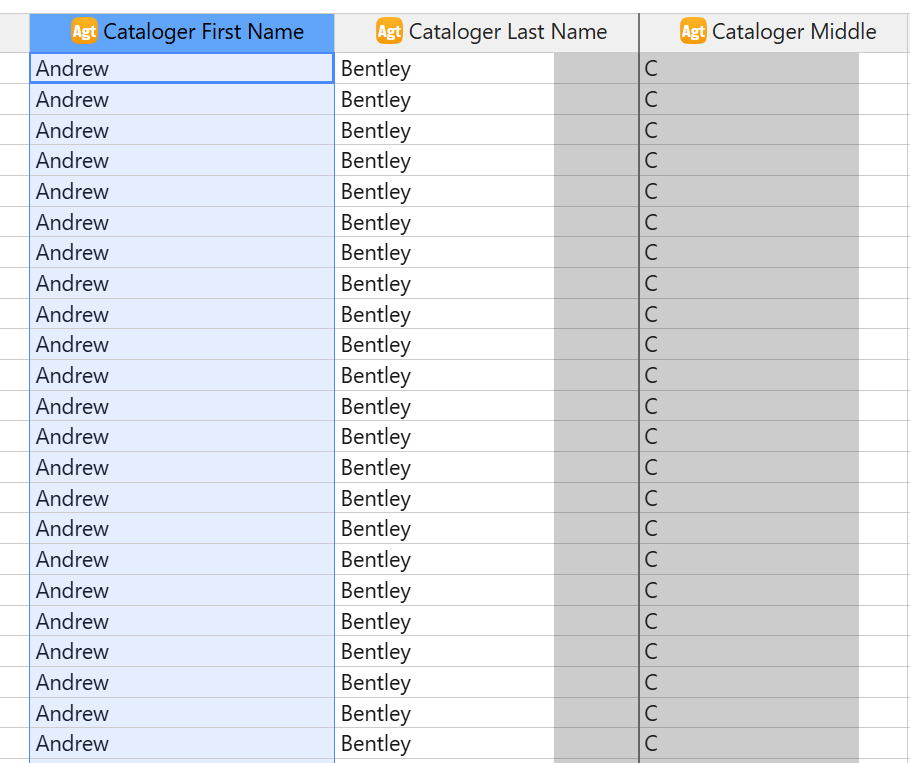
Click and hold on a column header, then begin to drag it to another part in the grid. A shadow will begin following your cursor representing the column moving to a new location. When hovering between two columns, a thick line will appear. This is where the column will drop once you release the click.
Sort Columns by Ascending and Descending
You can click on the column header text once to sort the grid ascending, twice to sort descending, and three times to reset it to neutral sorting.
 Click once to sort in ascending order
 Click twice to sort in descending order
 Click three times to return to the default neutral sorting

You can set the sorting priority of multiple columns by pressing Alt while selecting the column headers. A number (such as  ) will appear on the right of the column header showing the order of sorting operation.
Select Entire Rows or Columns
To select an entire row, just click on the row number.

To select an entire column, click on the column header.

To select multiple columns, click on the first column header and click while pressing Ctrl on the other columns. Press Shift to select subsequent in-between columns all at once.

Modify Cells
Auto-incrementing formatters
In order to automatically create new catalog numbers (or new values in other auto-incremented fields) you need to insert the format for the field into the cell.
[!example]
If your collection’s configured catalog number format is2023-######, enter that pattern in the mapped catalog number cell when you want Specify to assign the numeric portion during upload. Use the format configured for your collection; a pattern from another collection may be invalid.
Editing Cell Values
To begin editing a cell, you just need to click it or select it with your keyboard and begin typing.
Pick Lists


Cells that are mapped to fields formatted as pick lists are available as pick lists in the WorkBench.
While you can enter text into the field, it will only be valid if new pick list items can be added. Click on the  symbol to expand the drop-down menu.
Cell Context Menus
When you right-click on a neutral cell, you will be presented with several options.

| Name | Description |
|---|---|
| Insert row above | Inserts a row above the selected cell. |
| Insert row below | Inserts a row below the selected cell. |
| Remove row | Removes the entire row containing the selected cell. |
| Disambiguate | Allows you to solve ambiguity errors that result when new data has identical records matching information already in the database. |
| Fill down | Takes the top row of selected cells and fills it down the grid. |
| Fill up | Takes the bottom row of selected cells and fills it up the grid. |
| Undo | Undoes the previous modification. |
| Redo | Redoes the previously undid modification. |
[!note]
You can select multiple rows and then right click and select Remove rows to remove multiple rows at once
Error Cell Behavior
After a data set has been validated there might be some errors.
In most cases, error cells will notify you with a potential solution or explanation for why there is an error. A tooltip will appear when hovering over an errored cell.
In some cases, you will have to manually edit to solve the error (for example, you must choose a value that matches the numeric formatter).

Another error is ambiguity errors related to duplications in the database. When a disambiguation error appears, you can right-click and disambiguate the value to solve the issue.
Now you can choose if you want this correction to apply to all matching cells or only the first selected one.


New Cell Behavior
After uploading the Data Set, right-click a cell with an upload result to open its associated record. A cell without an available result will not show a record link.

WorkBench Grid Editing Guide
| Button | What it does | Availability |
|---|---|---|
| Meta Data | Shows the Data Set name, remarks, size, dates, upload status, and creator. | Available when viewing the Data Set. |
| Tools | Opens the ownership, mapping, export, and locality tools listed below. | Some tools depend on permission and mapped fields. |
| Change Owner | Transfers the Data Set to another user, who can then find it in their WorkBench list. | Transfer permission. |
| Import/Export Mapping | Exports the Upload Plan as JSON or imports a mapping into this Data Set. Importing can replace its current mapping. | Available from Tools. |
| Export | Downloads the Data Set as delimited text. The export preference determines its delimiter and extension; export the mapping separately. | Save changes first. |
| Convert Coordinates | Converts mapped Locality coordinates into another supported format. | Mapped Locality data; unavailable after upload. |
| GEOLocate | Opens GEOLocate for mapped Locality data. | Mapped Locality data; unavailable after upload. |
| GeoMap | Plots available coordinates from selected rows, or all rows when none are selected. | Mapped Locality data. |
| Data Mapper | Opens the Upload Plan so you can review or change mappings. | Available for an editable Data Set. |
| Live Validation | Checks rows while you work. Use the regular Validate action for a full review before upload. | Shown when enabled in User Preferences. |
| Validate | Tests the saved Data Set without committing collection records, and reports errors and matching results. | Validate permission; save changes first. |
| Results | After validation, shows potential affected results by table. After upload, shows actual results. | Saved mapping and no unsaved changes. |
| Upload | Applies the Data Set to collection records after confirmation. | Upload permission; no unsaved changes or known invalid cells. |
| Save as Record Set | Saves newly created Base Table records from an ordinary WorkBench upload as a Record Set. | Uploaded Data Set and Record Set creation permission. |
| Roll Back | Removes records created by the upload and clears its uploaded state. See the warning below. | Uploaded Data Set and unupload permission. |
| Revert | Discards all unsaved changes since the last save and reloads the saved Data Set. Use Undo in the grid to reverse a recent edit. | Unsaved changes. |
| Save | Saves grid changes to the Data Set. | Update permission. |
WorkBench Grid Navigation Tools

The WorkBench features several navigators to make modifying and understanding your Data Set simple.
Search Results Navigator

Search and Replace can be used either as a regular search function or to replace what was searched with something else.
With Search, the text you enter in the Search text box will be automatically queried on the data set. This Live search behavior can be changed in the configuration options defined below. Use the Search Results Navigator to view the count of results and easily find them in the data set.
To Replace, simply enter the text that should replace the current results value in the Replace text box. Execute the replacement by clicking the Return/Enter key on your keyboard.
Click on the  button and you can configure:
| Options | Description |
|---|---|
| Cursor Priority | When navigating the search results: column first means that it will move up/down the column and then move to the next row whereas row first means it will move across the row before moving up/down the columns. |
| Find entire cells only | If the search result needs to match the entire cell then this needs to be checked but if it can just be a part of a cell then this should be unchecked. |
| Match case | With this checked the search will be case sensitive, with it unchecked it will be case insensitive. |
| Use regular expression | Regular expression is supported when searching and when using find and replace. |
| Live search | With this checked it will search as you are typing, if it is unchecked it will only search after enter is pressed. |
| Replace mode | When using the find and replace feature: replace all matches will replace every instance of the searched term with the replaced term, replace next occurence will just replace the selected search term with the replaced term. |

Search highlighting
Every cell that matches the entire text in the search field will be highlighted green. This behavior can be modified with the “Find entire cells” only preference.

Modified Cells Navigator
Every cell you modify before saving will be highlighted yellow.

New Cells Navigator
Every cell that is new to your database before uploading will be highlighted purple.

Error Cells Navigator
Error cells are highlighted in red. Correct the data or mapping, save, and validate again before uploading.

Validate, review, and upload
The mapper and the grid have different Validate actions. The mapper checks whether the Upload Plan has the required mappings. The grid tests the Data Set rows against the plan and current collection configuration without committing collection records.
- Save any changes in the grid, then select Validate.
- Inspect error cells, ambiguous matches, and values marked as new. Use Disambiguate where several records match; changing a mapped value in that row clears its previous disambiguation choice.
- Correct the Data Set or mapping, save, and validate again.
- Open Results to review the potential affected results by table. Check for unexpected new records or missing matches.
- Select Upload, review the confirmation, and confirm. The Data Set becomes read-only after a successful upload. Results then shows the records actually affected.
[!warning]
Specify does not require a completed validation run before it enables Upload. It blocks the button for unsaved changes or known invalid cells, but you should still validate and review the potential results before uploading.
After upload, Save as Record Set is optional. For an ordinary WorkBench Data Set, it saves the newly created Base Table records. It does not include every related record that was created or matched during upload.
Roll back an upload
If you have permission, Roll Back removes records created by the upload and clears the Data Set’s uploaded state. It does not check whether those records have since been edited before deleting them. Rollback can fail if one of the created records is now referenced by another record.
[!warning]
Verify an upload before editing or linking its new records elsewhere. Treat Roll Back as a limited recovery action, not as version history. If you imported attachments, rollback unlinks them from the created records while the files remain associated with the Data Set.
Scope and ownership
A WorkBench Data Set is tied to the collection in which it was created and to its current owner. The owner finds it in their WorkBench list. A user with transfer permission can use Tools → Change Owner to hand it to someone else. The saved Upload Plan belongs to that Data Set; it can be copied or exported for another Data Set, but its mappings and matching rules should be reviewed each time. Validation and upload use the configuration and collection-specific values of the current collection.
WorkBench Grid Locality Tools
| Button | Tool | Description | Column Requirements |
|---|---|---|---|
| GeoLocate | GeoLocate | The WorkBench processes all the selected rows and caches the information, and then the results can be stepped through one row at a time. The appropriate Latitude/ Longitude can be selected, or skipped. | Latitude 1, Longitude 1 |
| GeoMap | GeoMap | GeoMap plots all the points in your selection on the map. It uses OpenStreetMap, ESRI, Géoportail, USGS, and NASA maps to give a multitude of viewing options. | Latitude1, Longitude1 |
| Convert Coordinates | Latitude/Longitude Converter | The Latitude/Longitude Converter tool converts numerous georeference formats within the Latitude1 and Longitude1 columns of a Data Set into decimal degrees (DD.DDDD),degrees decimal minutes(DD MM.MM), degrees minutes seconds (DD MM SS.SS), decimal degrees with cardinal direction (DD.DDDD N/S/E/W) and degrees minutes seconds with cardinal direction (DD MM SS.SS N/S/E/W). | Latitude1, Longitude1. Lat1text and Long1text can be added to preserve a copy of the original Lat1 and Long1 values. |
Each of these tools can be scoped to a specific row and the convert coordinates and GeoMap tools can be scoped to multiple rows at once.
GEOLocate

The GEOLocate project has created software and services for translating textual locality descriptions associated with biodiversity collections data into geographic coordinates. It uses a description of a Locality and geography fields, such as County, State and Country, to find Latitude and Longitude coordinate values. This is referred to as georeferencing. The Specify and GEOLocate teams have collaborated to create a GEOLocate module inside Specify.
GEOLocate will show you any possible locations it can find based on the information in your columns. You can zoom, scroll, and navigate the GEOLocate web application within Specify. You can edit the uncertainty, add pins, and draw polygons.
You can view and modify the locality, country, state, and county from the GEOLocate window. Click Georeference to search the modified query.
GEOLocate Definitions
| Name | Description |
|---|---|
| Position | Represents the Latitude and Longitude of the GEOLocate result, visually depicted on the map as a green marker. These results can be edited. |
| Markers | Represents the Latitude and Longitude of a GEOLocate point, visually depicted on the map as a red marker. These will be become a green marker if it is the selected position. |
| Uncertainty Radius | Represents the error due to the uncertainty of the locality information provided. It is shown as a grey circle around the green point marker on the map. The Uncertainty Radius can also be edited. |
| Latitude | Represents the latitude to the hundredth degree. |
| Longitude | Represents the longitude to the hundredth degree. |
| Pattern | Or pattern identifier, is a text description of the pattern or keyword used to determine a GEOLocate result. Single locality strings often include multiple patterns, producing multiple GEOLocate results. |
| Precision | An indication of the quality of locality information. Each GEOLocate result is given a score between 0 and 100 which represents the probability of it being a match. That score is then placed within a ‘low’, ‘medium’ and ‘high’ ranking to indicate precision. Results are then ordered according to their probability number, which allows results within the same rank to include the most accurate matches first. |
| Error Polygon | A polygon which encompasses the entire area of uncertainty. |
| Uncertainty | Represents the error due to the uncertainty of the locality information provided. |


Placing a marker will change your point’s latitude and longitude and move the uncertainty radius around with it.

[!note]
The green marker that is selected when it first loads is the value for the most accurate result. If this is not the one you want you can plot you own point or select one of the red point(s) which will turn green when selcted. Whichever point is green when you save to application is the point that will be saved.
Measuring allows you to click anywhere on the map, move your mouse to measure a distance, and double click to finish the measurement. It will display in kilometers and miles.

This text box shows the Lat1, Long1, Uncertainty radius in meters, and the coordinates of your polygon’s points.
Draw a polygon by clicking on map for each point in your polygon. Once you are finished creating it, double click the mouse. You can clear your polygon by pressing the Clear Polygon button to draw a new one.

You can save the information created on GEOLocate to Specify if you have the correct columns in your Data Set. The information will be fed directly to the WorkBench once you click the Save To Your Application button at the bottom of the window.
Under the Workbench tab in GEOLocate’s interface, you can click Options to configure the georeferencing options.

| Name | Description |
|---|---|
| Match Water Body | When enabled, GEOLocate will search the locality string for bridge crossing information and attempt to pinpoint the locality at the intersection of the river and highway. This feature only works for U.S. localities and requires county data. |
| Detect Hwy/River Crossing | When enabled, GEOLocate will search the locality string for the names of rivers and streams. If one is found, GEOLocate will snap the calculated points to the nearest point on the waterbody. This feature only works for U.S. localities and requires county data. |
| Do Uncertainty | When enabled GEOLocate will calculate and return the uncertainty radius if one exists. |
| Do Error Polygon | When enabled GEOLocate will calculate and return the error polygon. |
| Displace Polygon | When enabled GEOLocate will use any distance value referred to in the Locality Description to displace the GEOLocate Error Polygon value (if one exists). If 10 miles North of Lawrence is in the Locality Description, but the Error Polygon in GEOLocate is a 30-mile radius around the center of Lawrence, GEOLocate will move the 30-mile radius 10 miles North of the center of Lawrence. |
| Restrict to Lowest Adm. Unit | When enabled limits results found by GEOLocate to points within the lowest administrative unit in the locality description. |
| Language | Tells GEOLocate what language to use for the Locality interpretation. |
Specify uses the embedded client from GEOLocate. For more documentation, visit their website https://www.geo-locate.org/.
All Specify interactions are managed by the Specify Software.
GeoMap

GeoMap plots all the points in your selection on the map, if no rows are selected, all rows will be mapped. It uses OpenStreetMap, ESRI, Géoportail, USGS, and NASA maps to give a multitude of viewing options.