This guide details the Express Search feature, which provides a quick way to find records across multiple indexed tables simultaneously. It explains how to execute searches using text or dates, navigate the results grid, configure which tables and fields are searchable, manage related (secondary) queries, customize results ordering, and perform actions on selected records like creating Record Sets.
Overview
Express Search in Specify 7 is a fast, cross-table search that queries indexed fields across multiple tables at once.
Unlike the Query Builder, Express Search does not require constructing structured queries. Simply type a search term and results are returned from all configured tables simultaneously — including primary search tables (e.g., Collection Object, Agent, Collecting Event) and optionally related (secondary) tables such as Determinations or Localities.
Express Search is fully configurable. Administrators can customize:
- Which tables and fields are searchable
- Which fields are displayed in results
- Which related (secondary) queries are active
- The order in which results sections appear
Using Express Search
Search Tips Panel
When you first open the Express Search page, a dismissable Search Tips panel appears with guidance on available search syntax:

- The panel can be dismissed and will not reappear unless manually re-enabled.
- It summarizes wildcard usage, date formats, and phrase searching.
Steps to Execute an Express Search
-
Click on the
 Search icon in the navigation menu, or use the search box on the top-right of the home page.
 -
Enter Search Criteria: Enter your query, using wild card characters as needed to refine your search.
-
Execute Search: Press the Return key
or click on the Search button to perform the search.

Date Searches
There are only two supported date formats when using Express Search: %m/%d/%Y and %Y-%m-%d.
Wild Cards and Quotes
In Specify, wild cards and quotes serve different purposes in refining search results:
Wild Cards
Specify supports three primary wild card characters when using Express Search, the ‘Like’ operator in the Query Builder, and when searching from a query combo box form. The operators behave in the following ways:
| Wildcard | Represents | Placement Restrictions | Example Usage | Matches Examples |
|---|---|---|---|---|
* |
Zero or more characters | Can be used at the start and end of a search string, but not between characters. | *123*, 123* |
*123* matches “Field123”, “Data123Field”, “123Data”; 123* matches “123Data”, “123”; but not “A123B”. |
% |
Zero or more characters | Can be used anywhere in the string. | %123, 123%, A%BC, A%B% |
%123 matches “Data123”, “123”; 123% matches “123Data”, “123”; A%BC matches “A123BC”, “ABCD”; A%B% matches “AB”, “A1B”, “A123B234”. |
_ |
A single character | Can be used anywhere in the string. | h__t, sp____y |
h__t matches “heat”, “host”; sp____y matches “specify”, “spindly”, where underscores represent any single character. |
Breakdown of Wild Cards
-
%(Percent Sign): This wildcard offers the most flexibility as it can be used anywhere in the search string. It allows for complex pattern matching and can be repeated multiple times within a single query. -
*(Asterisk): This wildcard is useful for searching for substrings that may appear at the beginning or end of a string. You can use two asterisks, one at the start and one at the end, but you cannot place an asterisk between characters, which limits its flexibility compared to the other wildcards. If used within a search string, it will be interpreted literally.- The asterisk wildcard is only supported when searching on text fields.
- All leading and trailing
*characters are removed from the search term.*mysuffixis equivalent to**mysuffix. Similarly,*mystring*is the same as***mystring**.
-
_(Underscore): This wildcard is used to represent a single character. It can be placed anywhere in the string, allowing you to search for patterns where only one character is unknown.
Escape Characters
To search for a wildcard character literally, you can prefix it with a backslash (\). This backslash acts as an escape character, indicating that the following character should be treated as a literal character rather than a special or wildcard character.
Example:
Suppose you have a field that contains the value 4%400, and you want to search for this exact string. To do so, you would enter 4\%400 in your search query. In this case, the backslash escapes the percent sign (%), allowing you to search for it literally rather than interpreting it as a wildcard character.

If you need to escape the backslash, you can use an additional backslash (\\ would search literally for \).
Quotes
Quotes (single or double) are used to define exact phrases in your search criteria. When you enclose text in quotes, the search engine treats the entire string as a single search term rather than separating it into individual words. This is particularly useful when searching for multi-word phrases.
Examples of Quote Usage:
"Clinton Lake"or'Clinton Lake': Returns any string where “Clinton Lake” is the entire string."*Clinton Lake*"or'*Clinton Lake*': Returns any string that includes “Clinton Lake” anywhere in the string.
Examples of Wild Card Usage
*Clinton: Returns any string with “Clinton” at the end."Clinton*": Returns any string that begins with “Clinton”.*Clinton*: Returns any string that includes “Clinton” anywhere in the string.*Clinton Lake*: Returns any string that begins with “Lake” or ends with “Clinton”.
Notes
- Numbers can be searched in both number and string fields.
- If the search criteria is a 4-digit number between 1000 and 3000, and date fields are included, the search will include the year portion of those date fields.
- For loan numbers formatted as a date plus a number (e.g., 2003-001), enter
2003*to find all results from 2003.
Express Search Results

Result Indicators
- Results from the primary search tables are included under the “Primary Search” header.
- Results from related tables are included under the “Secondary Search” header.
Viewing Results

- Clicking on the table name will expand the search to display all of the results for that particular table.

-
The search results appear and function similar to results in the Query Builder, meaning that you can navigate to the records directly by clicking on the
 (link out) button next to each result.
 -
Results can be converted into a Record Set by selecting one or more items and clicking the Create Record Set button.
-
You can use the Browse In Forms button to view all returned records in a dialog. If you select one or more results, clicking this button will display your selected records in a dialog.
-
You can select multiple items in the results by first clicking on a single item and then holding the Shift key while clicking on the items above or below your selection.
Configuring Express Search
Express Search can be customized directly within Specify 7 through a visual configuration editor. This replaces the previous method of editing XML files in Specify 6.
[!NOTE]
To access the Express Search configuration, you must have app resource read, edit, and update permissions. Without these permissions, the configure button will not be visible.
Opening the Configuration Editor
From either the home page or the search page, you can click the gear ( ) icon next to the Express Search box to configure the search options.
The editor opens as a dialog with three tabs: Search Fields, Related Tables, and Results Ordering.
Search Fields Tab
The Search Fields tab controls which tables are searchable and which fields within those tables are used for searching and result display.

Table Selection
- Use the Available Tables dropdown to select a table you want to configure (e.g., Collection Object, Agent, Collecting Event).
- The table’s available indexed fields appear on the right-hand side.
Searchable Fields
For each table, you can choose which fields are searched when a user enters a query:
- Check or uncheck individual fields to include or exclude them from search.
- Only indexed string, numeric, and date fields are available for selection.
Display Fields
Display fields determine what information is shown in the search results for each table:
- Select the fields you want to appear in results (e.g., Catalog Number, Determined By, Collection Date).
- Drag fields to reorder them. The top field appears first in results.
- Each display field can have a Sort Mode:
- None: No sorting applied (default).
- Ascending: Results sorted A→Z or smallest→largest.
- Descending: Results sorted Z→A or largest→smallest.
Saving Search Fields
Click Save to persist your Search Fields configuration. Changes take effect immediately for subsequent searches.
Related Tables Tab
The Related Tables tab controls which secondary (related) queries are active. Related tables display additional search results that are connected to primary results. For example, searching for an agent name can also show determinations made by that agent.

Managing Related Queries
- Each related query is listed with a checkbox, its name, and a description of what it searches.
- Check a related query to activate it — results from that query will appear under the Secondary Search header.
- Uncheck a related query to deactivate it — no results will be returned from that query.
- Use Select All and Deselect All to quickly toggle all queries.
Examples of related queries include:
- Collection Object Determiners — Finds Collection Objects determined by a matching Agent.
- Collection Object Locality — Finds Collection Objects collected at a matching Locality.
- Accepted Taxon — Finds the accepted taxonomic name for a given taxon.
[!TIP]
Deactivating unused related queries can improve search performance and reduce clutter in the results panel.
Results Ordering Tab
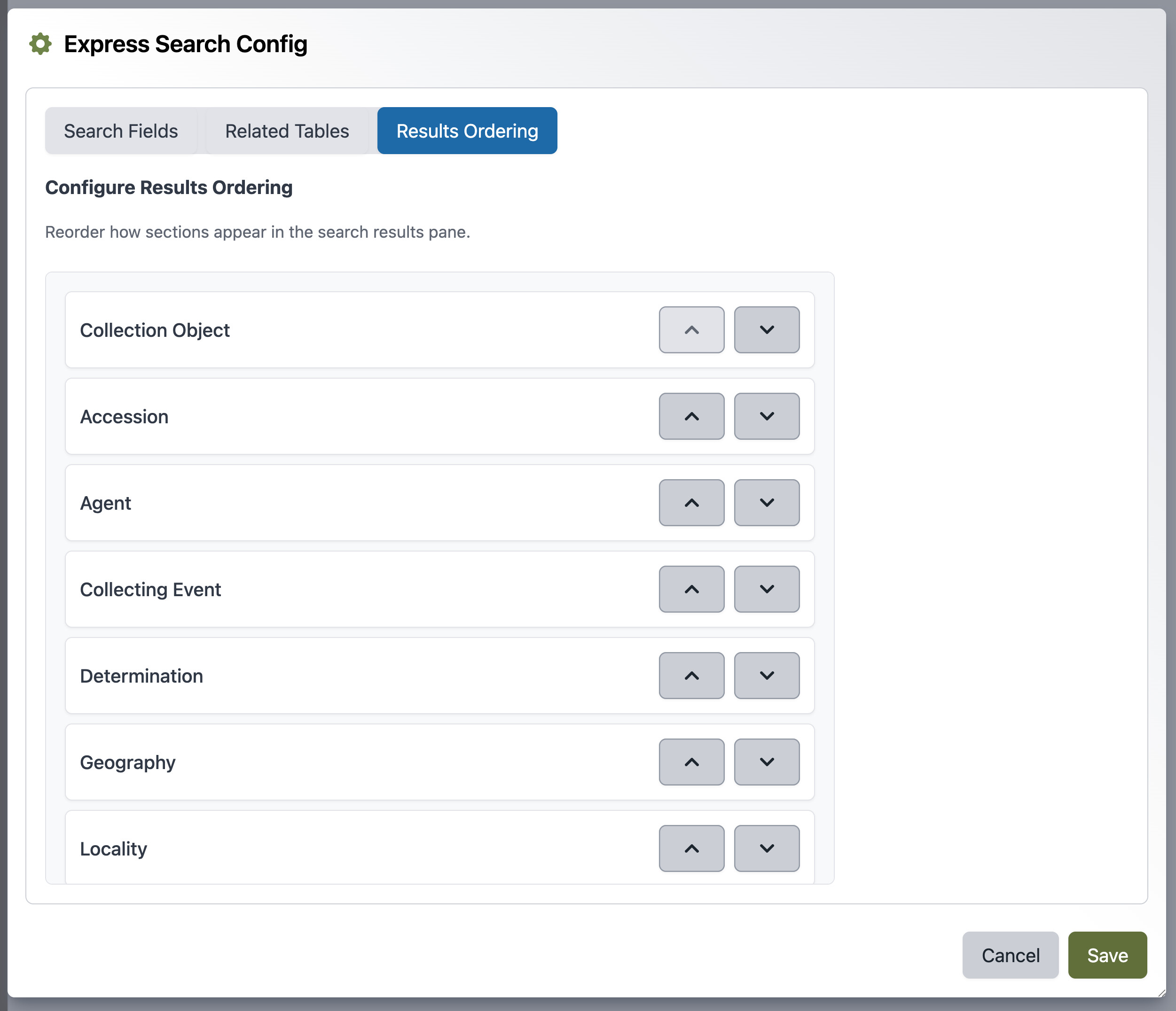
The Results Ordering tab controls the order in which search result sections appear in the results panel.
Reordering Sections
- Tables and related queries are listed in their current display order.
- Use the
 and
and  arrow buttons to move items up or down.
 - The top item in the list appears first in the search results.
- Both primary search tables and secondary (related) queries are ordered together — you can interleave primary and secondary results.
For example, you might arrange your results as:
- Collection Object (primary)
- Determinations (secondary)
- Agent (primary)
- Locality (secondary)
Saving Results Ordering
Click Save to persist your ordering. The new order applies to all future searches.
Configuration Storage
Express Search configurations are saved as App Resources:
- Discipline-level defaults are stored in XML files (e.g.,
config/common/expresssearchconfig.xml). - User or collection overrides are stored in the database via the App Resource system.
- The configuration hierarchy is: Personal → User Type → Discipline → Common → Backstop, meaning user-specific configurations take precedence over discipline defaults.
- The Express Search Config also appears as a first-class resource in the App Resources editor, accessible from the User Tools menu.
Reconciliation and Permissions
When loading the configuration, the system automatically reconciles it against the current data model and user permissions:
- Fields that no longer exist in the schema are removed from the configuration.
- Tables or fields the user does not have permission to view are excluded.
- Malformed configurations are recovered by falling back to the discipline default.
This ensures the configuration editor always presents a valid, permission-aware view of the search setup.