This guide details the Batch Identify feature, which provides a fast way to apply one determination to many Collection Objects at once. It explains how to select records by catalog number or Record Set, review and refine the selected set, enter a determination, and save it to all chosen records.
Overview
Batch Identify in Specify 7 is a two-step workflow for applying one determination to multiple Collection Objects.
Unlike editing records one at a time, Batch Identify is designed for bulk redeterminations. It is available from User Tools > Tools and opens as a dedicated overlay.
The workflow supports two ways to choose records:
- Enter catalog numbers directly
- Select an existing Record Set
The tool also understands mixed catalog-number input from scanners or pasted text, including prefixes, separators, and numeric ranges.
Using Batch Identify
Opening the Tool
- Open User Tools.
- Under the Tools section, select Batch Identify.

Batch Identify will open in a new dialog and begins on the record selection step.
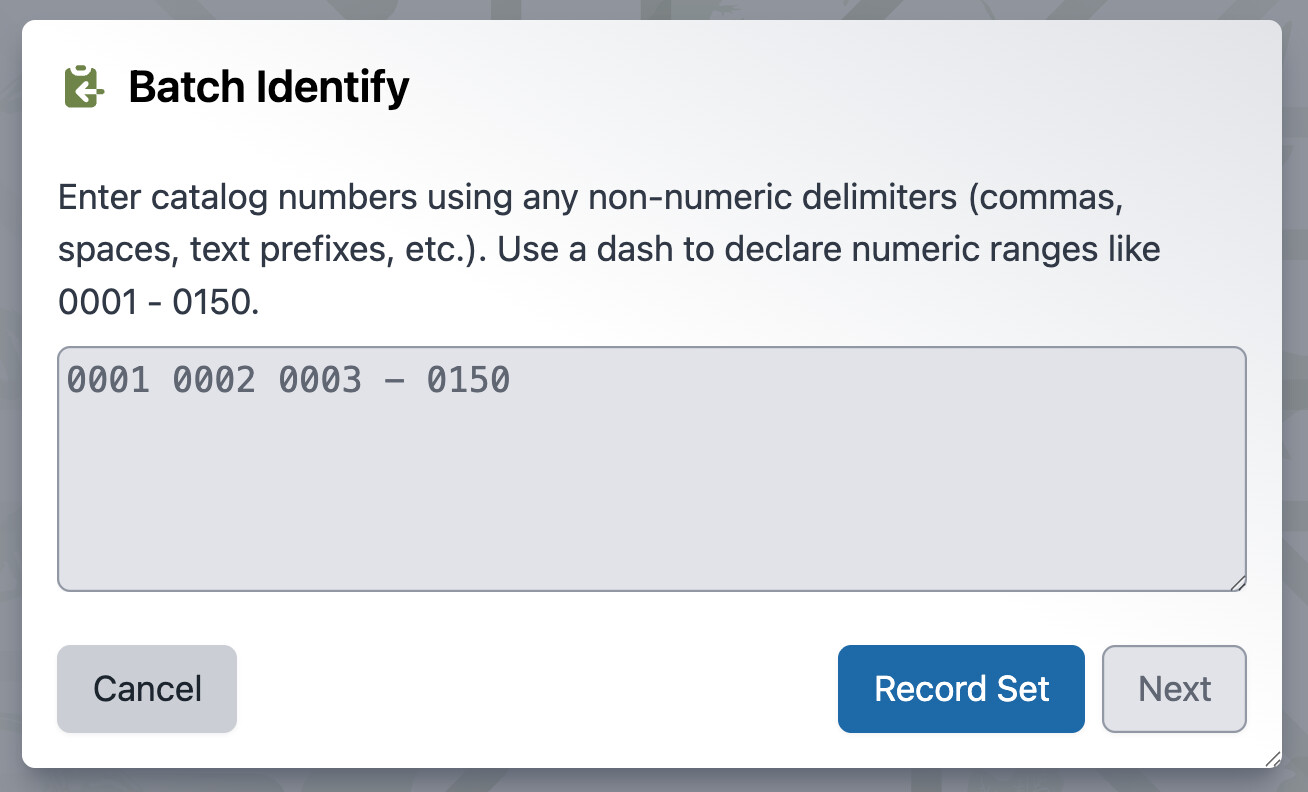
Selecting Records by Catalog Number
Batch Identify accepts free-form numeric catalog number input in a text box. For clarify, this corresponds only to CatalogNumber field values in the CollectionObject table.
[!note] Catalog Number Format
Catalog number entry only supports fully numeric (#########) or year-based (YYYY-######) catalog numbers at this time. If your catalog numbers include prefixes or other formats, you can use the Record Set option.
It treats any non-numeric characters as delimiters, which makes it friendly for barcode scanner input and pasted text. It also supports numeric ranges with a dash.
Examples of accepted input:
000200300, 000200301, 000200302SEMC000271806SEMC000687972SEMC000601108SEMC000271806, 0006879720001 - 01502025-000001
The tool will parse these as the matching catalog numbers or ranges and validate them before continuing.
Validation Behavior
As you enter data into the field, Batch Identify validates the input and shows feedback for:
-
Catalog numbers that do not match any Collection Object
-
Collection Objects that belong to different taxon trees
-
Invalid or empty input

If no numeric catalog numbers can be parsed, the tool shows an error asking for at least one numeric catalog number.
Selecting Records from a Record Set
Instead of entering catalog numbers, you can also choose an existing Record Set.
If the Record Set contains Collection Objects from more than one taxon tree, Batch Identify shows a mixed-record-set warning and asks you to choose a different Record Set.
If the Record Set is valid, the tool proceeds to the identification step.
Handling Multiple Taxon Trees
If the selected Collection Objects span multiple taxon trees, Batch Identify does not proceed immediately.
Instead, it shows a grouping view with:
- The taxon tree name
- The number of Collection Objects in each group
- The Collection Object types in each group
You then choose which group to continue with.
[!tip]
This is especially useful when a collection has multiple Collection Object types mapped to different taxon trees.
Identification Step

Once the records are validated, Batch Identify opens a split view:
- The top pane contains the standard Determination form
- The bottom pane contains a preview table of the selected Collection Objects
The Determination form uses the selected taxon tree context when one is available.
Determination Form
The top pane is the normal Specify determination editor. It supports the same standard form behavior users expect in the standard data entry form, including the usual query-combo and picklist-driven fields. This is using the form definition named Determination (just as the Collection Object uses by default).
The form starts with a current determination, so the default behavior is to create a new current determination for the selected records.
Preview Table
The bottom pane lists the selected Collection Objects and supports row selection, removal, and record lookup.
The preview shows these columns:
- Catalog Number
- Determined Date
- Type Status
- Preferred Name
- Taxon Name
Users can:
- Select rows and remove them from the batch (using the
 (minus) icon)
 - Search for additional records (using the
 (search) icon)
 - Click a row to open that record in a read-only verification dialog (using Browse In Forms)
Saving the Batch
Once Identify is clicked, Specify will create a determination for every selected Collection Object. If the determination is marked current, existing current determinations are replaced so the new one becomes the current determination on those records.
After saving, the tool shows a success message:

This dialog provides two follow-up actions:
- Create Record Set to manually create a Record Set from the identified records, if the user has Record Set create permission
- Browse In Forms to review the updated records in a read-only record browser